

How to Install SQL Server 2019 on Windows – Complete Beginner Guide
SQL Server 2019 is one of the most popular relational database management systems developed by Microsoft. Developers use it for web applications, enterprise software, APIs, reporting systems, and data management projects. If you are learning backend development or working with ASP.NET applications, then learning how to Install SQL Server 2019 is an important step.
In this guide, we will learn how to Install SQL Server 2019 step-by-step on Windows. This tutorial is beginner-friendly and explained in simple English for developers and students. We will also cover SSMS installation, database creation, connection problems, and important post-installation practices.
Why Use SQL Server 2019?
SQL Server 2019 provides high performance, better security, cloud integration, and advanced analytics support. It is widely used in enterprise-level applications because it can handle large amounts of data efficiently. Moreover, it works well with Microsoft development technologies such as .NET, ASP.NET Core, Visual Studio, and Azure.
For beginners, SQL Server 2019 is also useful because it provides a complete environment for learning relational database concepts. You can create databases, tables, relationships, views, stored procedures, functions, and queries. Therefore, understanding how to Install SQL Server 2019 gives developers a practical foundation for database development.
- Fast database performance
- Secure data storage
- Supports SQL queries and stored procedures
- Easy integration with .NET applications
- Advanced backup and recovery features
Additionally, SQL Server 2019 supports workloads ranging from small development projects to large enterprise systems. However, production environments require proper configuration, security controls, monitoring, backups, and capacity planning rather than relying only on default settings.
System Requirements
Before starting the installation process, make sure your system meets these minimum requirements. Available disk space, memory, processor capacity, and Windows configuration can affect installation and database performance. Therefore, check the system before you Install SQL Server 2019.
- Windows 10 or Windows 11
- Minimum 4 GB RAM
- At least 6 GB free disk space
- .NET Framework support
- Administrator access
For learning purposes, a modern Windows computer with additional free RAM and storage is recommended. In contrast, production servers should be planned according to workload, database size, concurrent users, storage performance, and backup requirements. Also, close unnecessary applications before starting the setup to reduce resource pressure.
Step 1 – Download SQL Server 2019
First, open the official Microsoft SQL Server download page and download SQL Server 2019 Developer Edition. The Developer Edition is completely free for learning and development purposes. It provides the features needed to build and test applications without requiring a paid production license.
When you Install SQL Server 2019 for development, choose the edition that matches your intended use and licensing requirements. Developer Edition is intended for development and testing, not for production workloads. Always review Microsoft’s current licensing information before deploying SQL Server in a business environment.
Official Download Link:
Microsoft SQL Server Official Website
Step 2 – Run the Installer
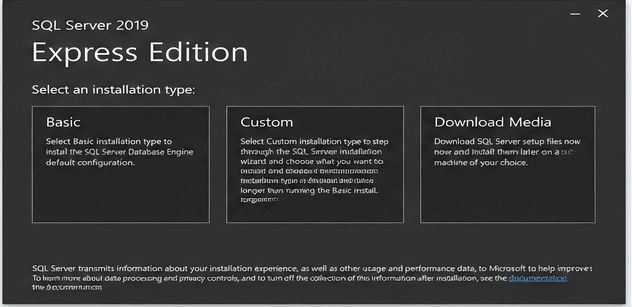
After downloading the setup file, double-click the installer. You will see three installation options. The Basic option is the easiest choice for beginners because the setup uses common default settings. The Custom option provides more control, while Download Media lets you save installation files for later use.
- Basic
- Custom
- Download Media
Choose the Basic installation option if you are a beginner. It automatically installs SQL Server with default settings. However, experienced developers may prefer Custom installation because it allows them to select features, instance settings, storage locations, and other configuration options.
During installation, keep the computer connected to a stable power source. Furthermore, avoid restarting Windows while the setup wizard is running. If the installer reports a prerequisite problem, read the displayed message carefully before retrying the installation.
Step 3 – Accept License Terms
Now accept the Microsoft license terms and click the Install button. The setup wizard will start downloading required packages and install SQL Server 2019 on your machine. Depending on your system and internet connection, this process can take several minutes.
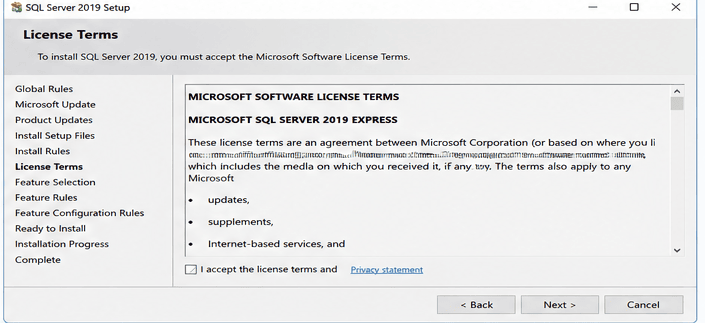
Installation may take several minutes depending on your internet speed and system performance. Therefore, do not close the installer unless an error occurs. If Windows displays a security or administrator permission prompt, verify that the installer is the expected Microsoft setup program before continuing.
For development systems, the default installation is usually sufficient to get started. Later, you can learn about SQL Server instances, services, authentication modes, TCP/IP settings, and storage configuration as your database administration knowledge grows.
Step 4 – Installation Complete
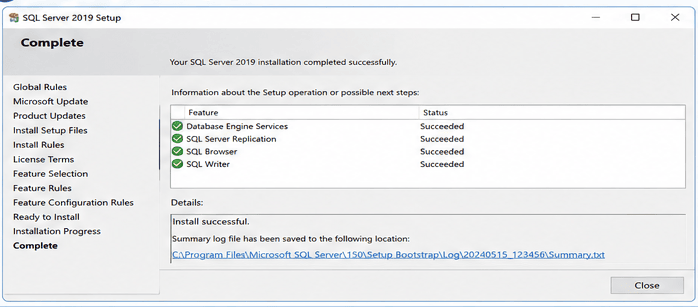
Once installation is completed successfully, you will see information about the installed SQL Server environment. These details help you identify the SQL Server instance and connect client applications or management tools to the database engine.
- SQL Server Instance Name
- Installed Features
- Connection String Details
Save these details because they are useful when connecting applications with SQL Server. For example, an ASP.NET Core application may need the server name and database name in its connection configuration. Therefore, understanding the instance name is especially important when you work with multiple SQL Server installations.
Step 5 – Install SQL Server Management Studio (SSMS)
SQL Server installation alone is not enough. You also need SQL Server Management Studio (SSMS) to manage databases, tables, queries, and stored procedures. SSMS provides a graphical interface that makes common database administration tasks easier for beginners and experienced developers.
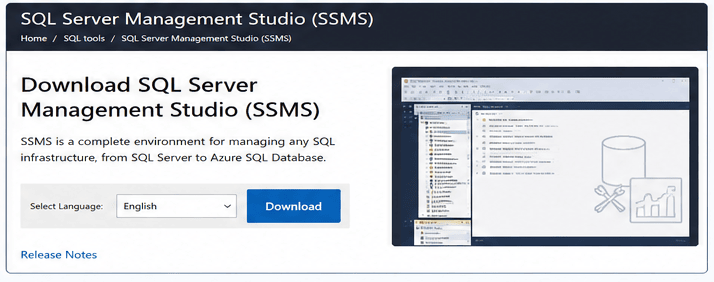
Download SSMS from the official Microsoft website and install it normally like other Windows applications. SSMS is maintained separately from the SQL Server database engine, so installing the database server does not automatically mean that the latest SSMS version is installed.
Why SSMS is Important?
SSMS provides a graphical interface where developers can perform database development and administration tasks. After you Install SQL Server 2019, SSMS becomes one of the most useful tools for practicing SQL and troubleshooting database connectivity.
- Create databases
- Write SQL queries
- Create tables and relationships
- Manage backups
- Monitor database performance
Additionally, SSMS helps developers inspect execution plans, review database objects, manage users, and diagnose common errors. For beginners, practicing SQL queries directly in SSMS is an effective way to understand how applications interact with relational databases.
Step 6 – Connect to SQL Server
Open SQL Server Management Studio and enter the following details. The exact server name can vary depending on whether you installed a default instance or a named instance. Therefore, use the instance information displayed by the SQL Server setup when connecting for the first time.

- Server Type: Database Engine
- Server Name: localhost
- Authentication: Windows Authentication
Click the Connect button. If everything is configured correctly, SSMS will connect successfully to SQL Server 2019. Once connected, Object Explorer will display databases and other server objects. You can then create a database and start writing SQL queries.
If localhost does not work, check whether the SQL Server service is running and confirm the correct instance name. In some installations, the server name may include a named instance. This is a common beginner issue and does not necessarily mean that the installation failed.
Creating Your First Database
After successful connection, you can create your first database easily. A database provides a structured location for storing application data. For example, an ASP.NET application might use a database to store customers, products, orders, users, and transaction records.
- Right-click on Databases
- Click New Database
- Enter database name
- Click OK
Your database is now ready for development work. Next, you can create tables, define primary keys, establish relationships, and insert test records. Start with a small database because simple projects make it easier to understand normalization, constraints, indexes, and query performance.
In a production environment, database design should be planned before creating large numbers of tables. Consider naming standards, relationships, indexing strategy, security requirements, backup policies, and expected data growth. These decisions can prevent expensive changes later.
Common Installation Errors
1. Setup Failed Error
Run the installer as Administrator and disable antivirus temporarily during installation. However, security software should not be disabled unnecessarily. If an installation fails, first review the SQL Server setup logs and the exact error message. Removing the cause is safer than repeatedly restarting the installer.
2. Port Conflict Error
Sometimes another SQL instance may already be using the same port. Restart your system and retry installation. If the problem continues, check existing SQL Server instances and network configuration. In a multi-instance environment, each instance must be configured correctly so that applications can reach the intended database server.
3. SSMS Cannot Connect
Make sure SQL Server services are running from SQL Server Configuration Manager. Also verify the server name, authentication method, instance name, and network protocol settings. If you recently Install SQL Server 2019 and SSMS cannot connect, checking the SQL Server service is one of the best first troubleshooting steps.
For remote connections, additional configuration may be required. Firewall rules, TCP/IP settings, SQL Server Browser, authentication configuration, and network accessibility can all affect connectivity. Therefore, avoid changing firewall settings randomly and document any production configuration changes.
Best Practices After Installation
- Enable regular database backups
- Use strong authentication
- Keep SQL Server updated
- Monitor query performance
- Do not use SA account for daily development
After you Install SQL Server 2019, do not treat the default configuration as a complete production setup. Security should be reviewed before exposing a database server to a network. Use appropriate permissions, strong credentials, encrypted connections where required, and separate development and production environments.
Furthermore, establish a backup strategy before storing important business data. A backup is useful only when it can be restored successfully, so periodically test recovery procedures. Developers should also monitor slow queries, excessive resource usage, database growth, and index performance as applications become larger.
For enterprise applications, consider separating database storage, backups, application servers, and monitoring responsibilities. Proper planning improves scalability and reduces downtime. In contrast, a small local development machine can usually use simpler settings while you focus on learning SQL and application development.
Conclusion and Next Step
Installing SQL Server 2019 is simple if you follow the correct steps. It is one of the best database systems for developers working with .NET, APIs, enterprise applications, and cloud solutions. Once you Install SQL Server 2019 successfully, you have a strong foundation for learning relational database development.
After installation, make sure to install SSMS and practice creating databases, tables, and SQL queries regularly. Learning SQL Server can improve your backend development skills and help you build powerful data-driven applications. Moreover, regular practice will make concepts such as joins, indexes, transactions, stored procedures, and normalization easier to understand.
Setting up your relational database environment correctly prevents deployment issues later. Continue your database learning journey with our step-by-step SQL Server Tutorial: Complete Guide for Beginners to Advanced. Learn fundamental concepts in How to Install SQL Server 2019 on Windows, build your first database via How to Create a SQL Database, and integrate your database with applications using Connecting SQL with ASP.NET Core.
If you are a beginner, the best next step is to create a small practice database and connect it with a simple application. Start with basic SELECT, INSERT, UPDATE, and DELETE operations. Then gradually learn relationships, joins, indexes, transactions, security, and performance optimization. With consistent practice, SQL Server 2019 can become a valuable part of your backend development toolkit.